Index Note
Index Note

A whole book of your days,
turned by hand

Plans, diary, budget and memos in one place. Turn the pages, write by hand and decorate with stickers, just like the paper planner you used to love. For iPhone and iPad.

Coming soon to the App Store · stay tuned Try it here ↓
Diary, Planner & Budget Book
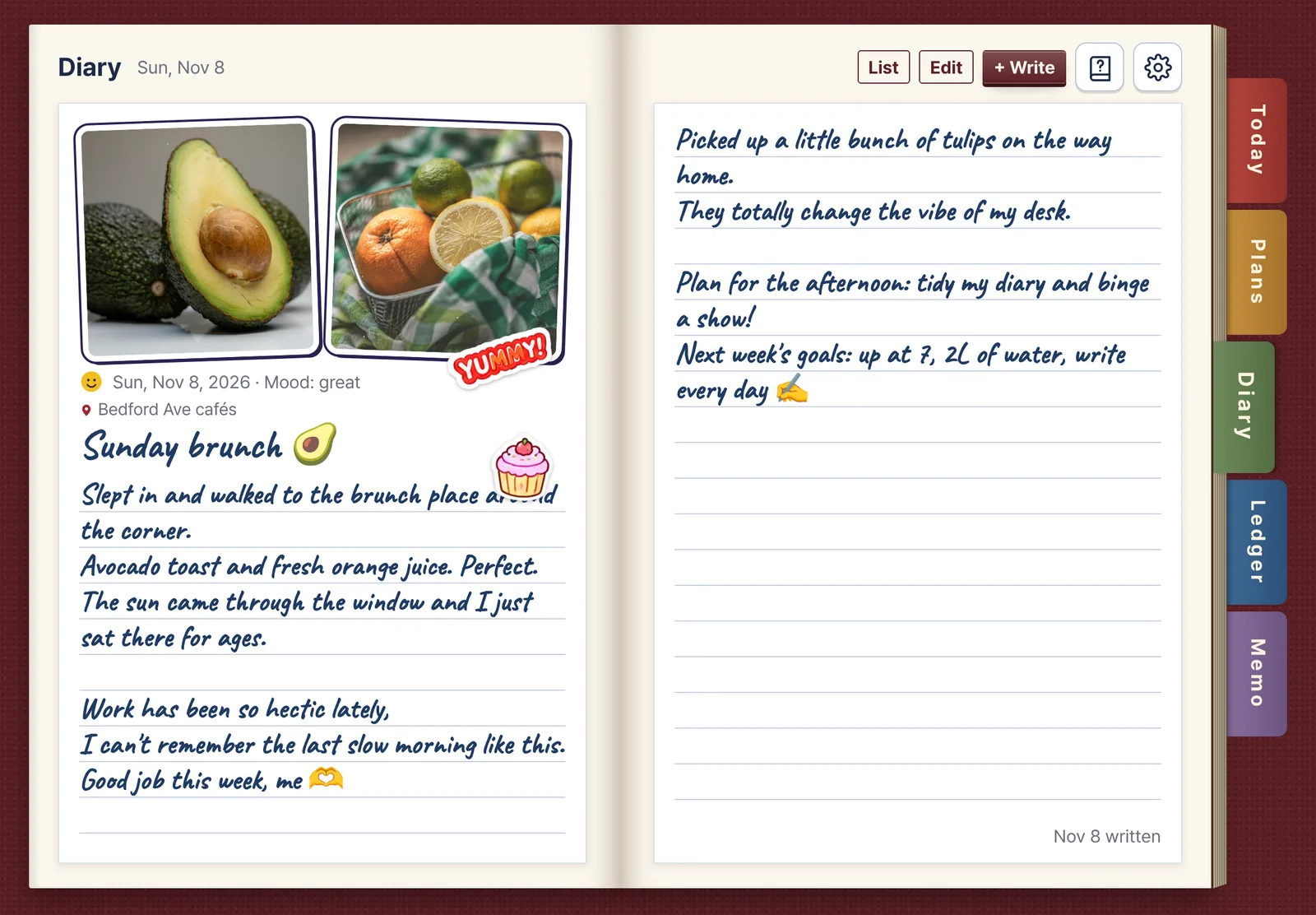
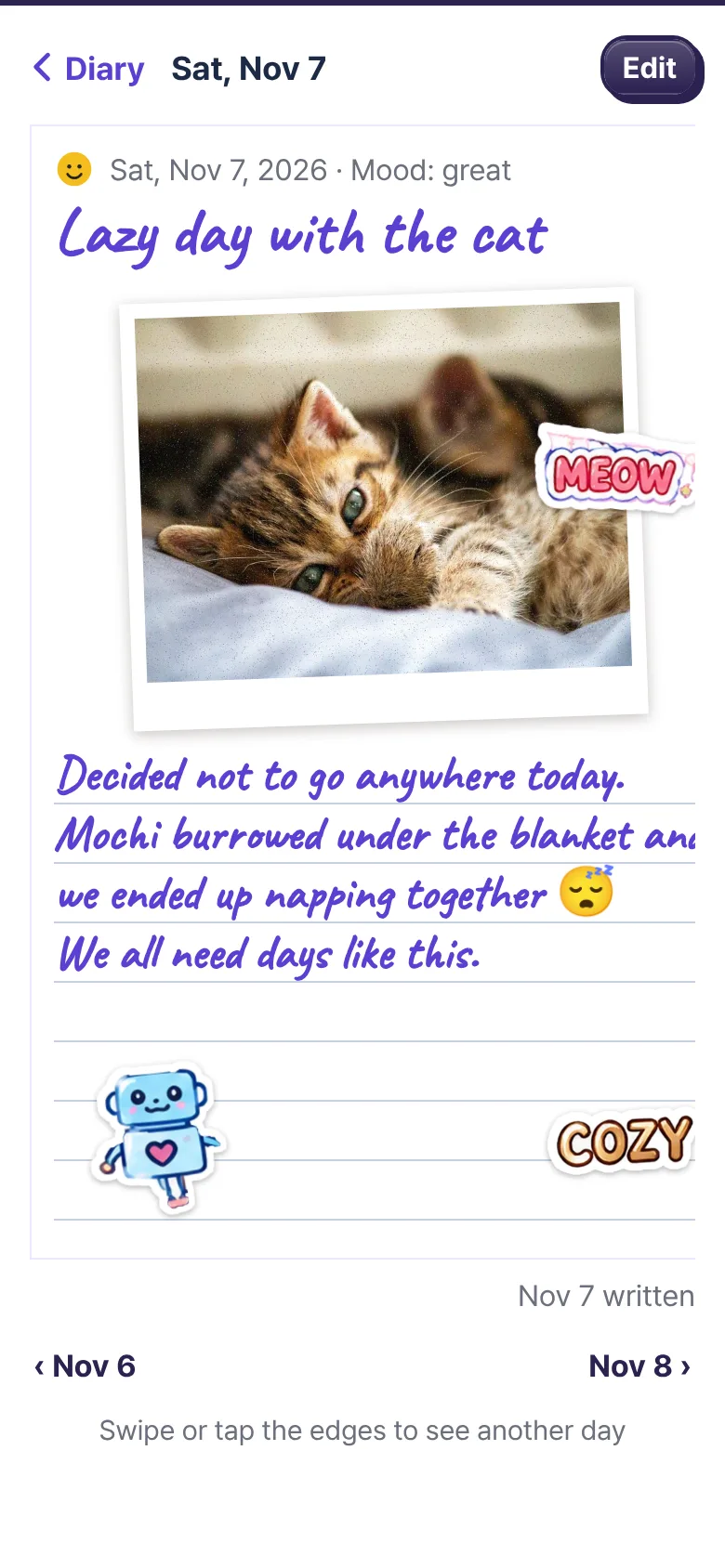
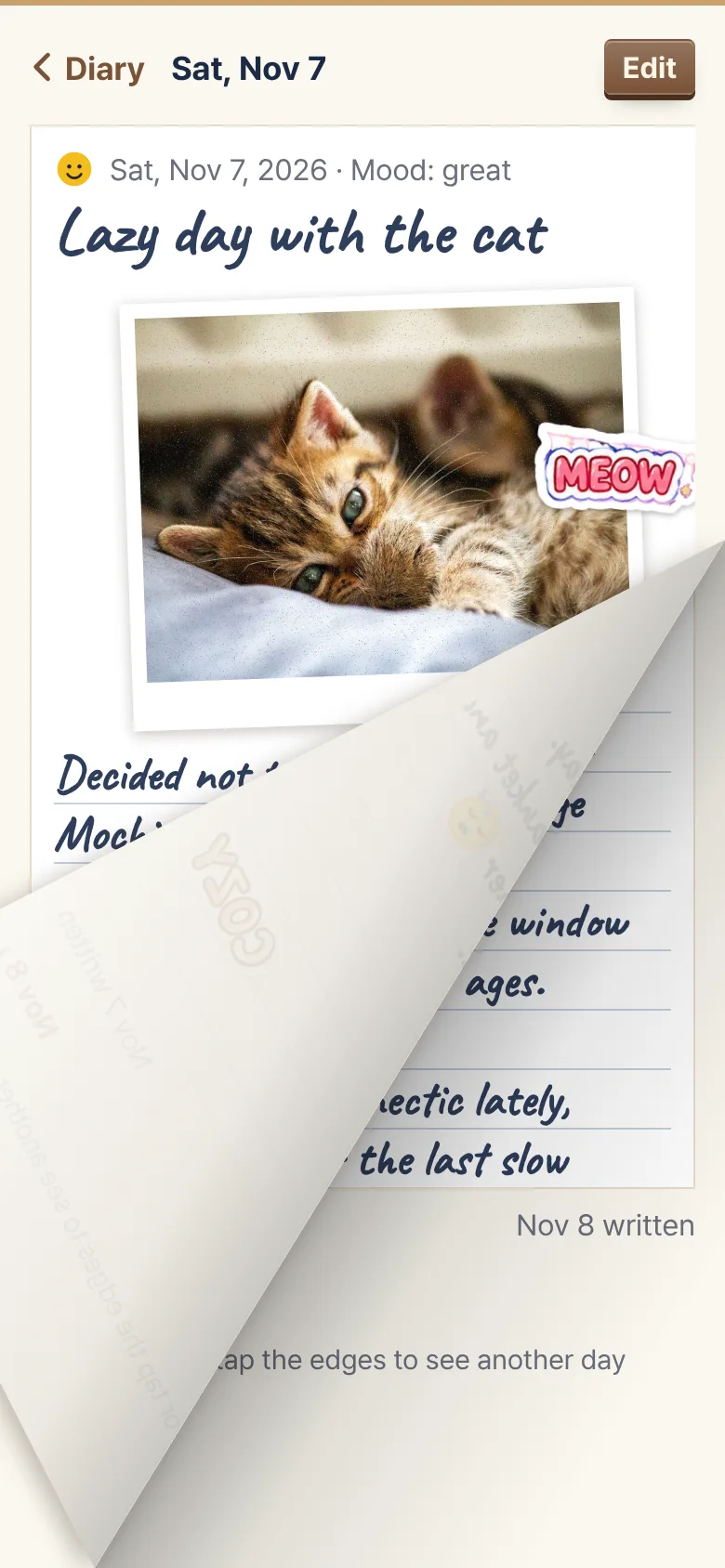
iPad in landscape: one day's diary spread across two pages, with an avocado photo at the top left iPhone diary page decorated with a cat photo and stickers
What it is

It's an app, but it feels like a real diary

Instead of tapping, you turn pages. Instead of typing, you write by hand. And you add cute stickers. We made the kind of book you want to open every day.

Turn the pages

Grab a corner and the page follows your finger. We even added the soft rustle of paper.

Your own handwriting

Write titles and entries with Apple Pencil or your finger. Nothing is converted to text: your handwriting stays just as you wrote it.

Decorate with stickers

Put any of 300+ stickers on your diary, memos or memo board, then resize and rotate them.

Try it

Before you install, flip through a copy

Try a diary filled with sample entries right here. Tap the cover to open it, tap the index tabs, and drag the paper sideways to turn the page. You can even write by hand with your mouse. Nothing you change is saved.

Open full size in a new tab ↗
  • Turning pages Drag the right edge of the paper to the left, or tap near the edge
  • Handwriting Diary → + Write → choose ✎ Pen and draw on the paper
  • Stickers Memo → + Sticker to put one on the board, then drag it around
Features

Five index tabs for your day

Today · Plans · Diary · Ledger · Memo. Jump straight there, like flipping to a tab on the side of a planner.

Brunch diary entry with two photos and a YUMMY sticker
Sunday brunch 🥑
A diary page turning as the finger drags it
Turn back to yesterday
Diary

Add photos, write by hand, decorate with stickers

Up to 3 photos: one looks like a print, two sit in frames, three tuck into pockets. If a photo has location data, the place is filled in for you.

  • Turn the pages to read yesterday's and the day before's entries
  • Mood emoji and handwritten titles
  • A gentle evening nudge: "Did you write today?"
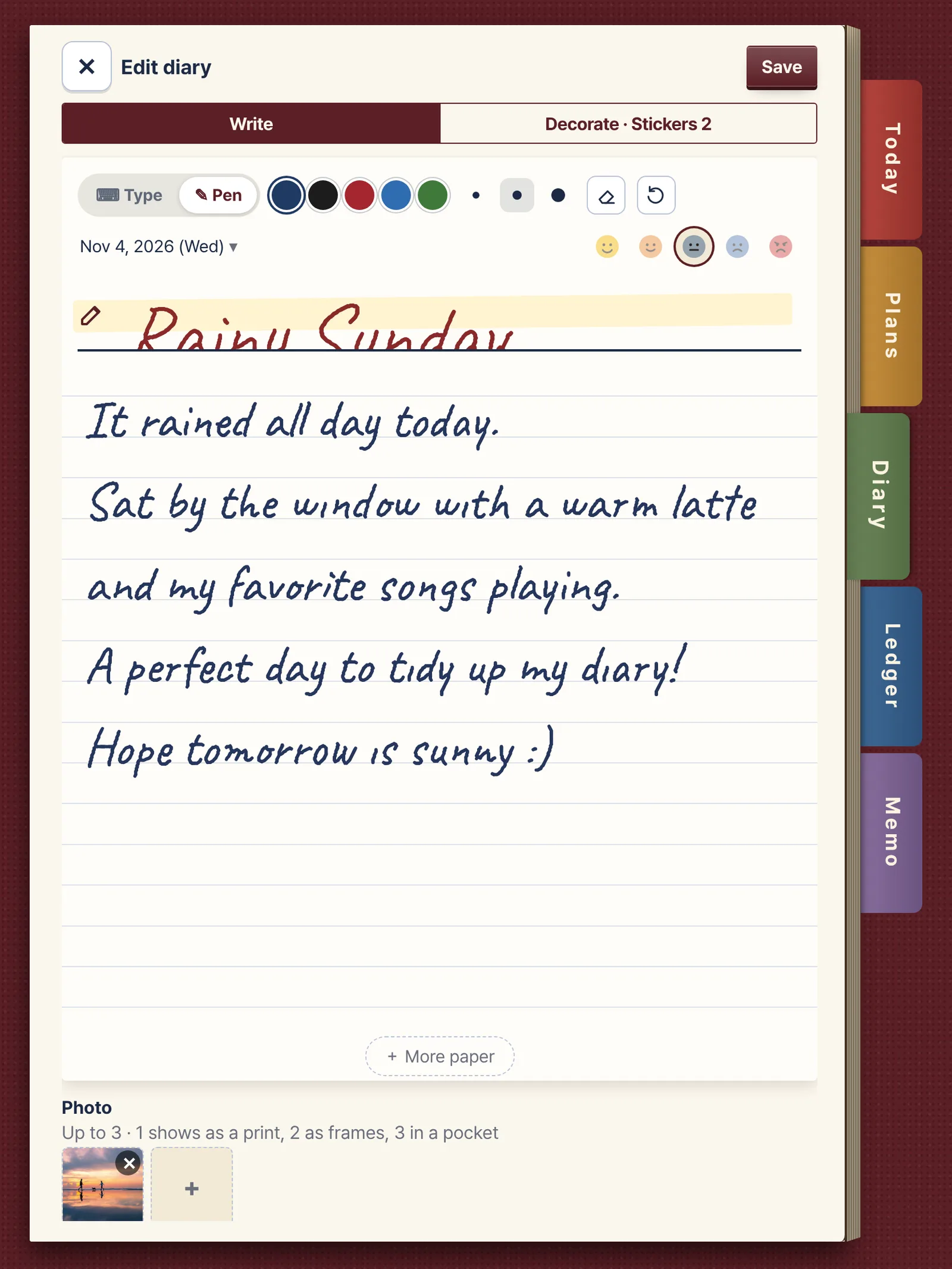
Writing a diary entry with a pen on iPad in portrait; the title and text are handwritten
Writing with a pen
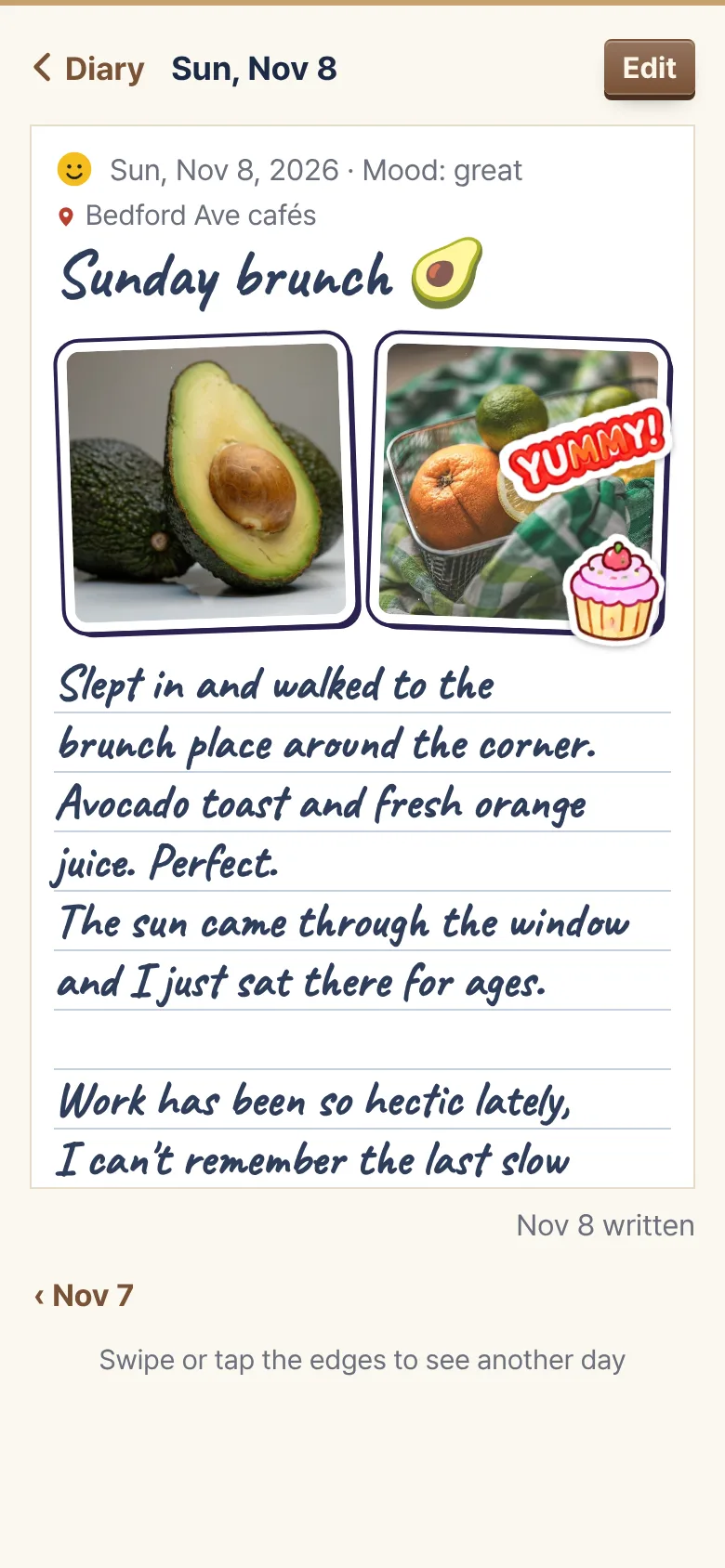
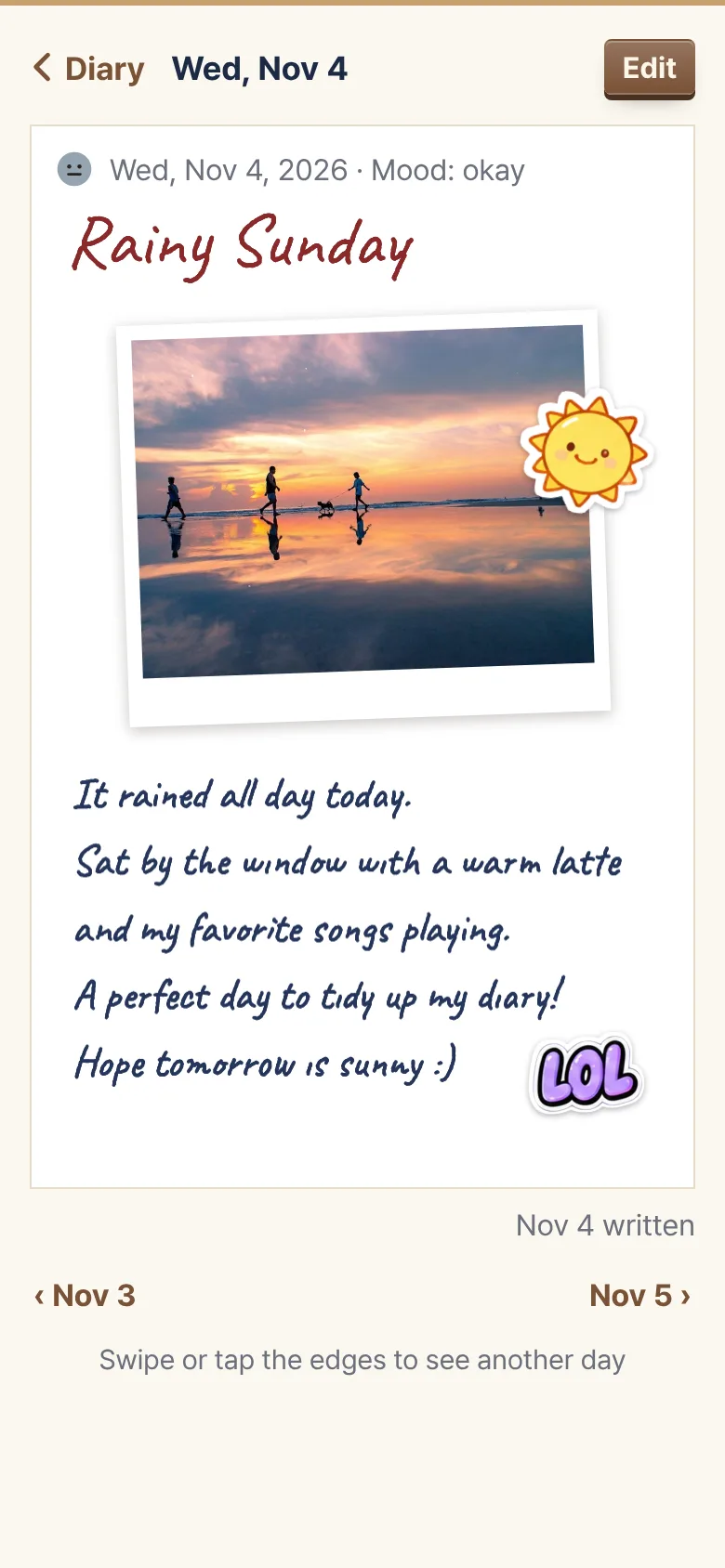
Reading a handwritten entry on iPhone
Read it again on iPhone
Handwriting

Write with a pen, in your own hand

Choose ✎ Pen and write the title and the entry right on the paper: with Apple Pencil on iPad, with your finger on iPhone. Your writing is never converted to text; it stays exactly as you wrote it.

  • 5 colors, 3 widths, eraser and undo
  • The paper grows as you write, and '+ More paper' adds another sheet
  • While you write with Apple Pencil, your palm won't leave marks
  • Handwritten entries look the same on iPhone and iPad
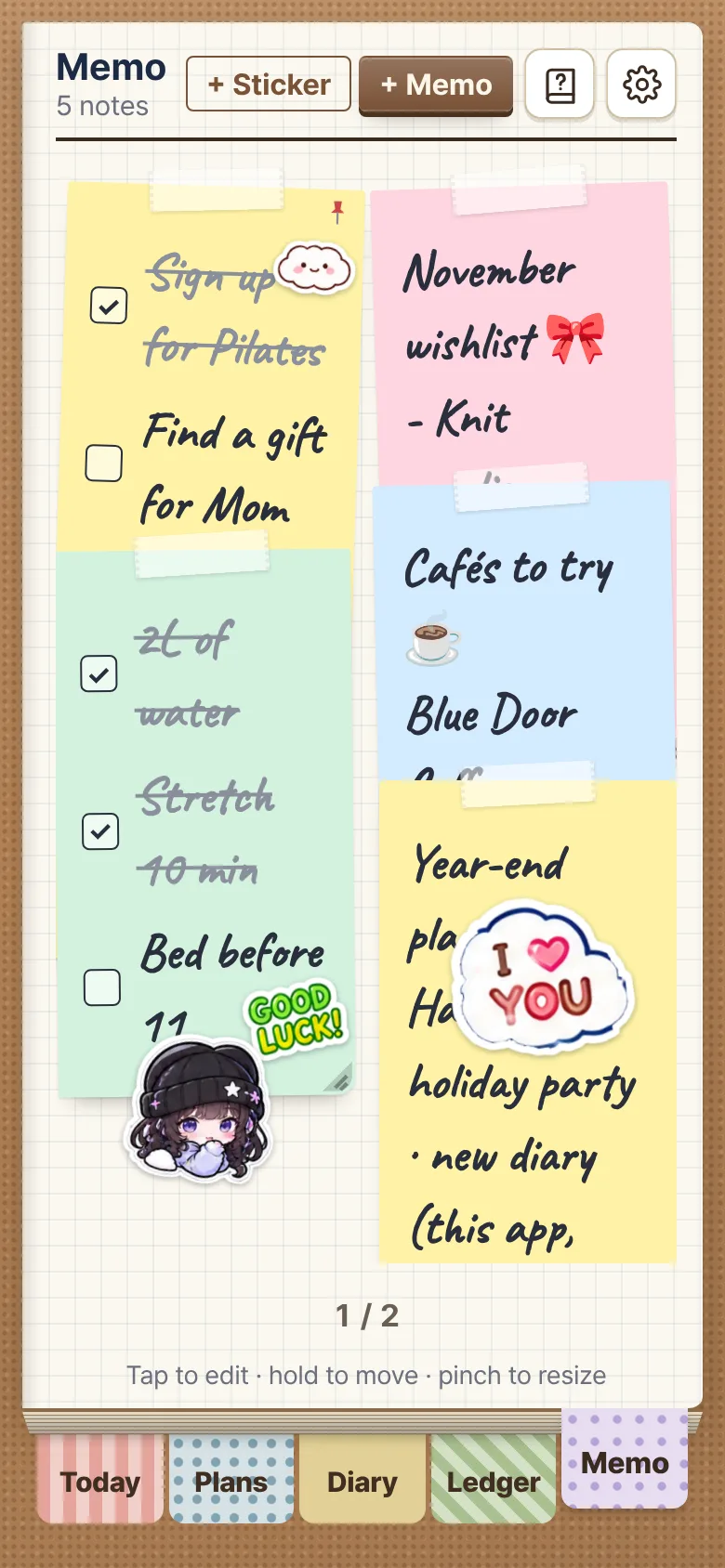
Memo board with sticky notes and stickers
Your own memo board
Memo

A memo board you stick and move, like sticky notes

Wish lists, grocery checklists, cafés to try. Press and hold a note to move it, drag its corner to resize. Spread two fingers and the writing grows with it.

  • Turn the page for a fresh board
  • Stickers go on the board and on the notes
  • Pin important notes to the cork board on the Today tab
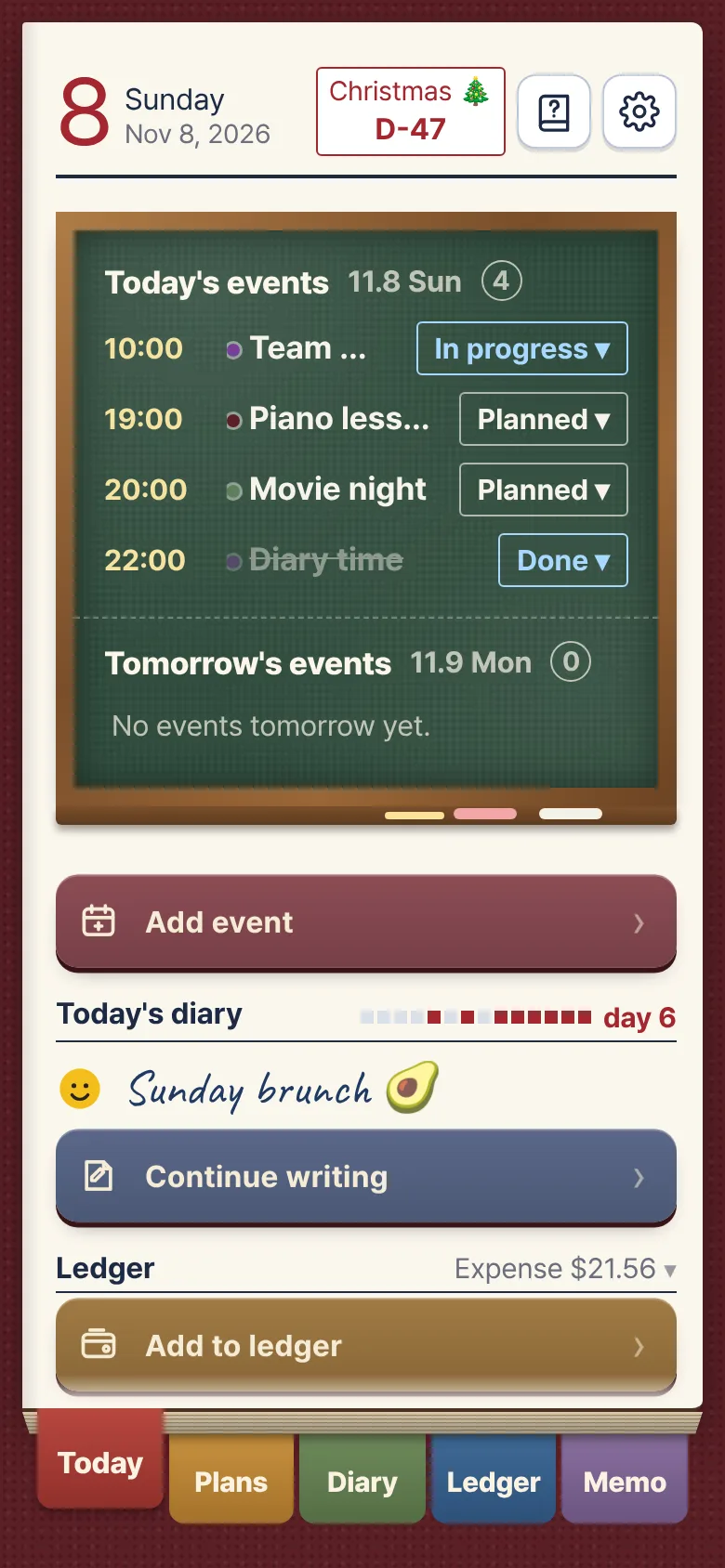
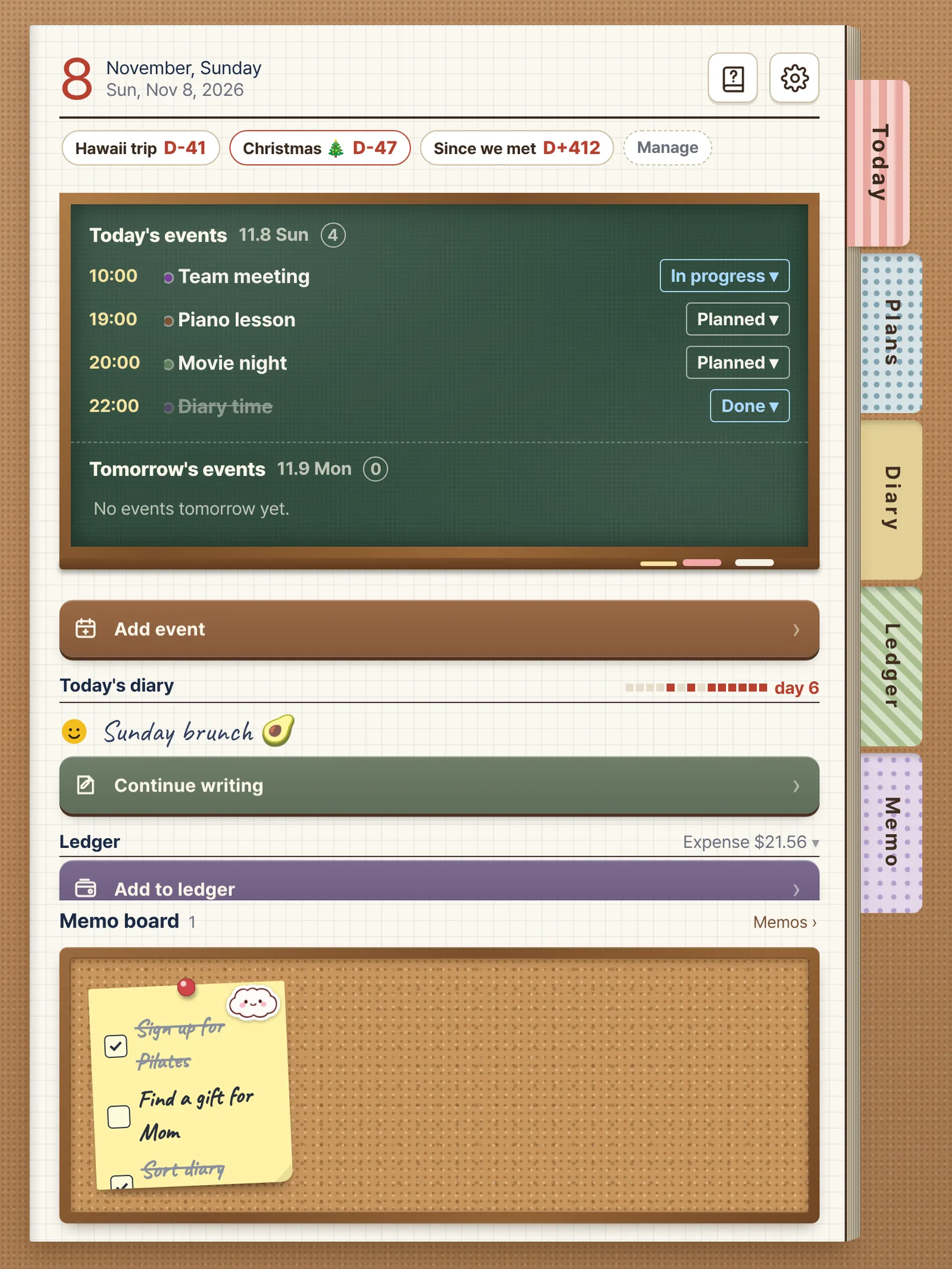
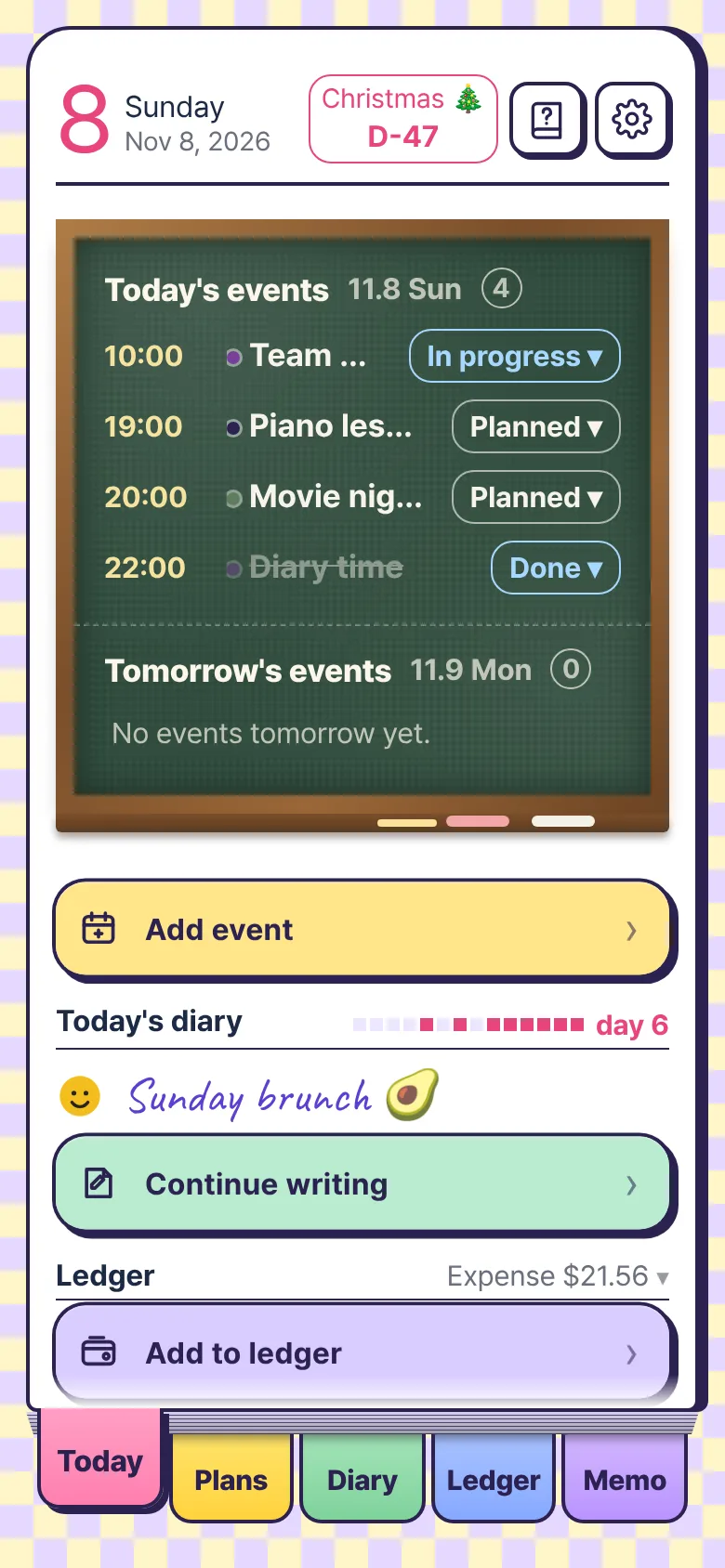
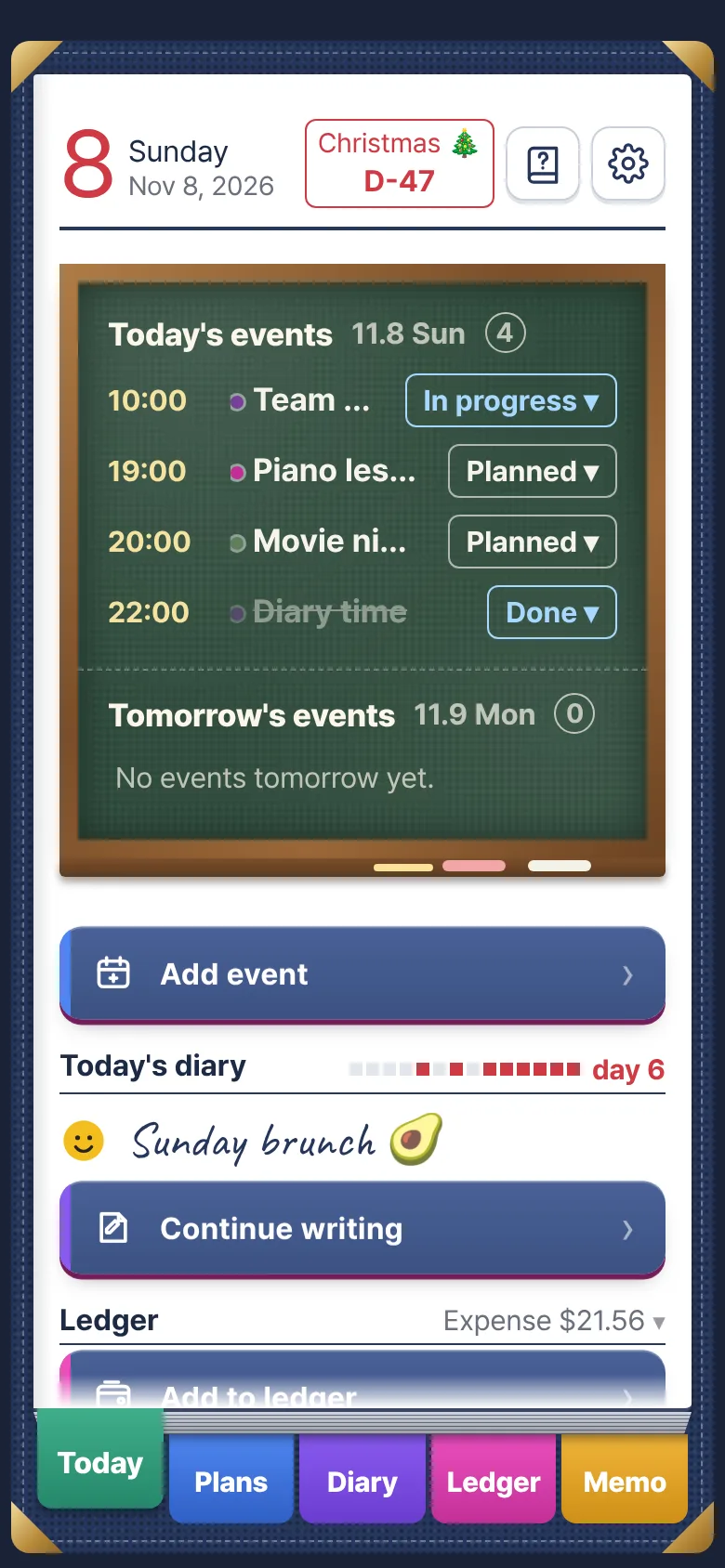
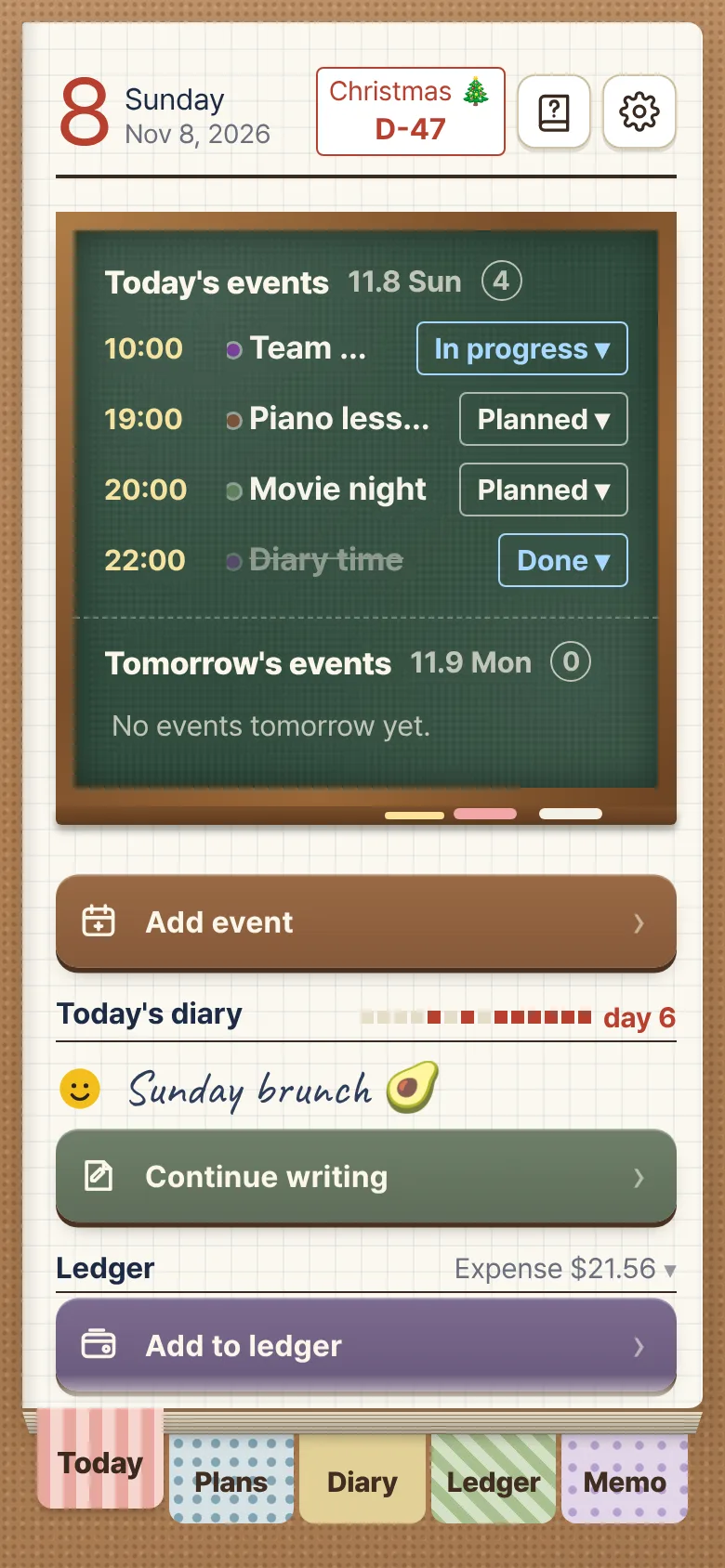
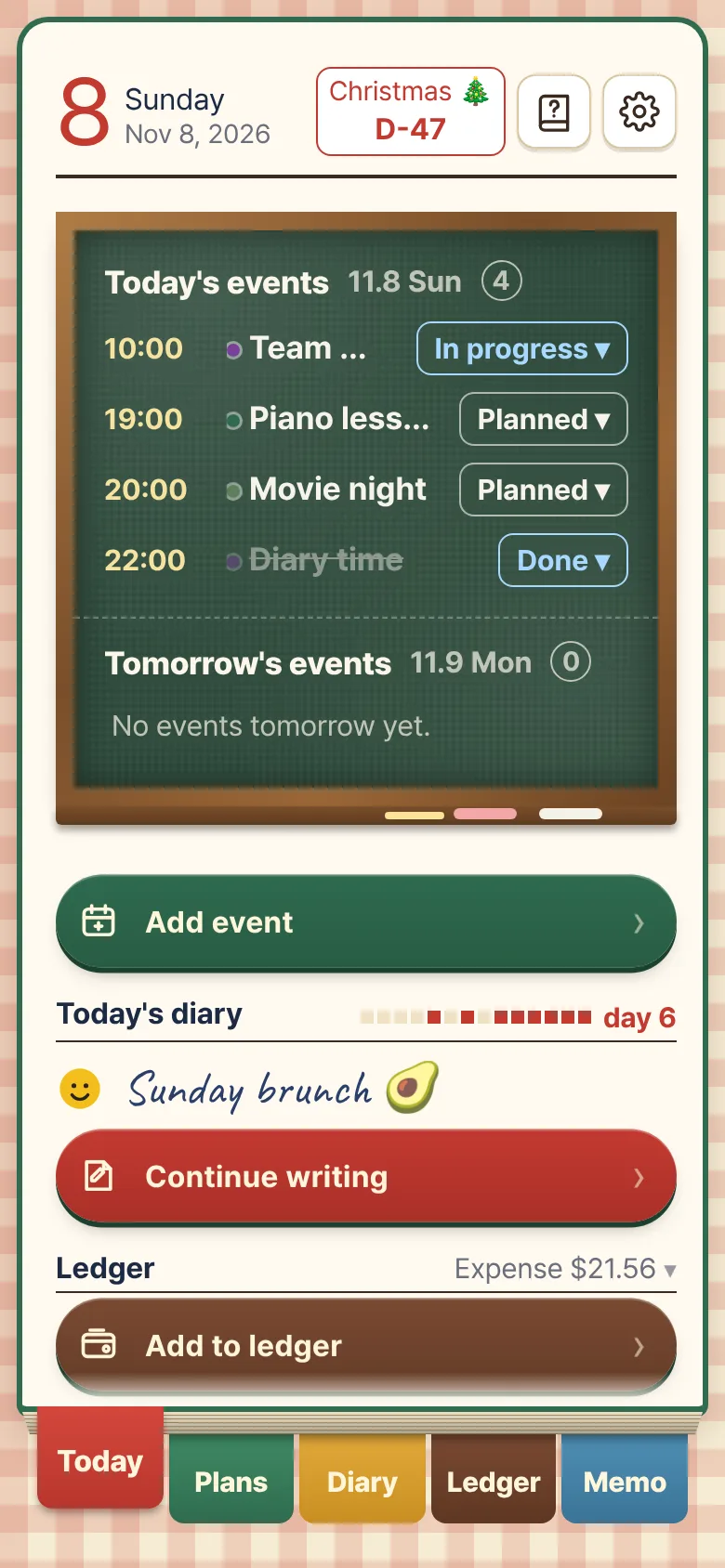
Today tab: today's and tomorrow's plans written on a green chalkboard
Today's chalkboard
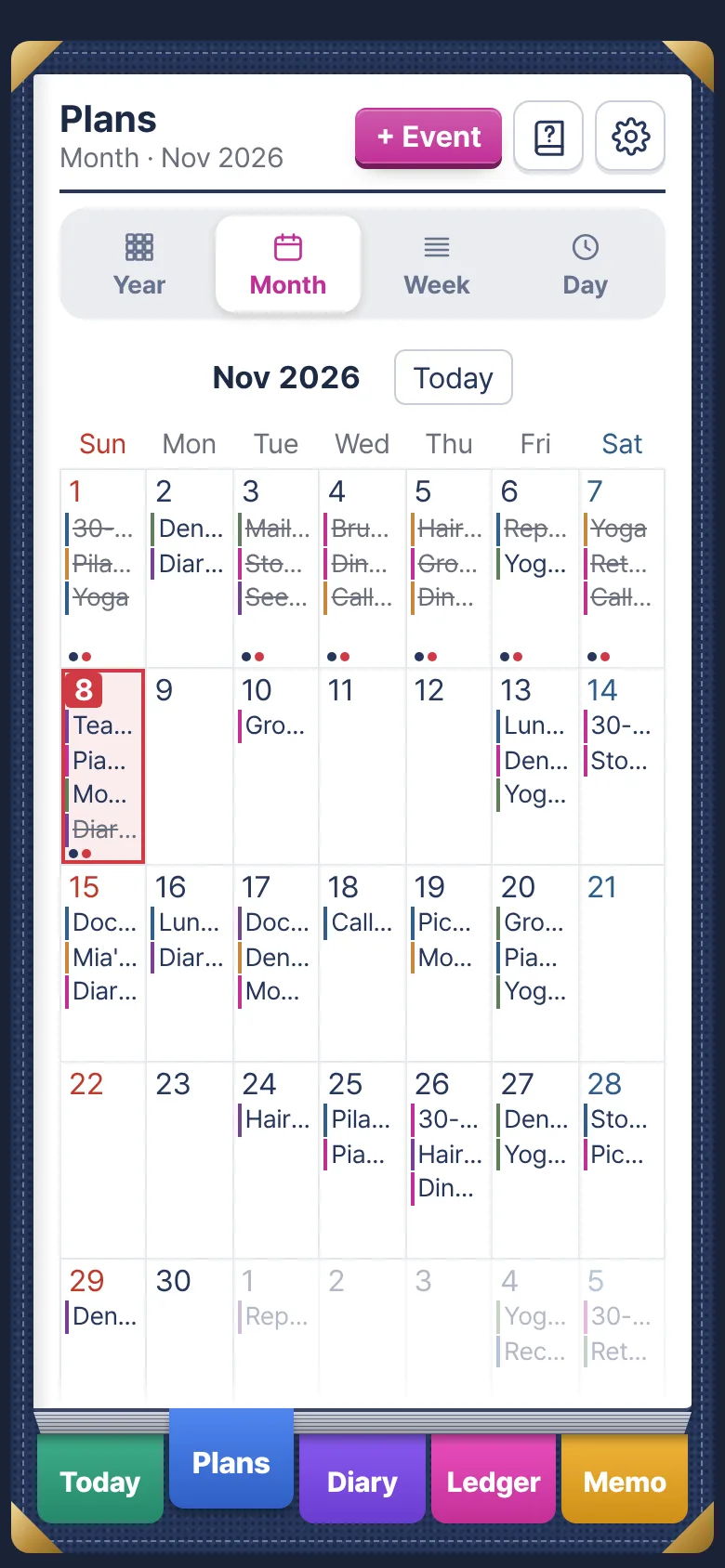
Monthly calendar with plans
Month view
Plans

Today on a chalkboard, the whole year at a flip

See today and tomorrow at a glance on a green chalkboard. Switch between year, month, week and day views, and turn the calendar like a page to reach next month.

  • Mark each plan in progress, done or postponed
  • Daily, weekly, monthly and yearly repeats, with reminders
  • Countdowns: days to Christmas, days since you met
  • Connects to the iPhone Calendar (Google Calendar included)
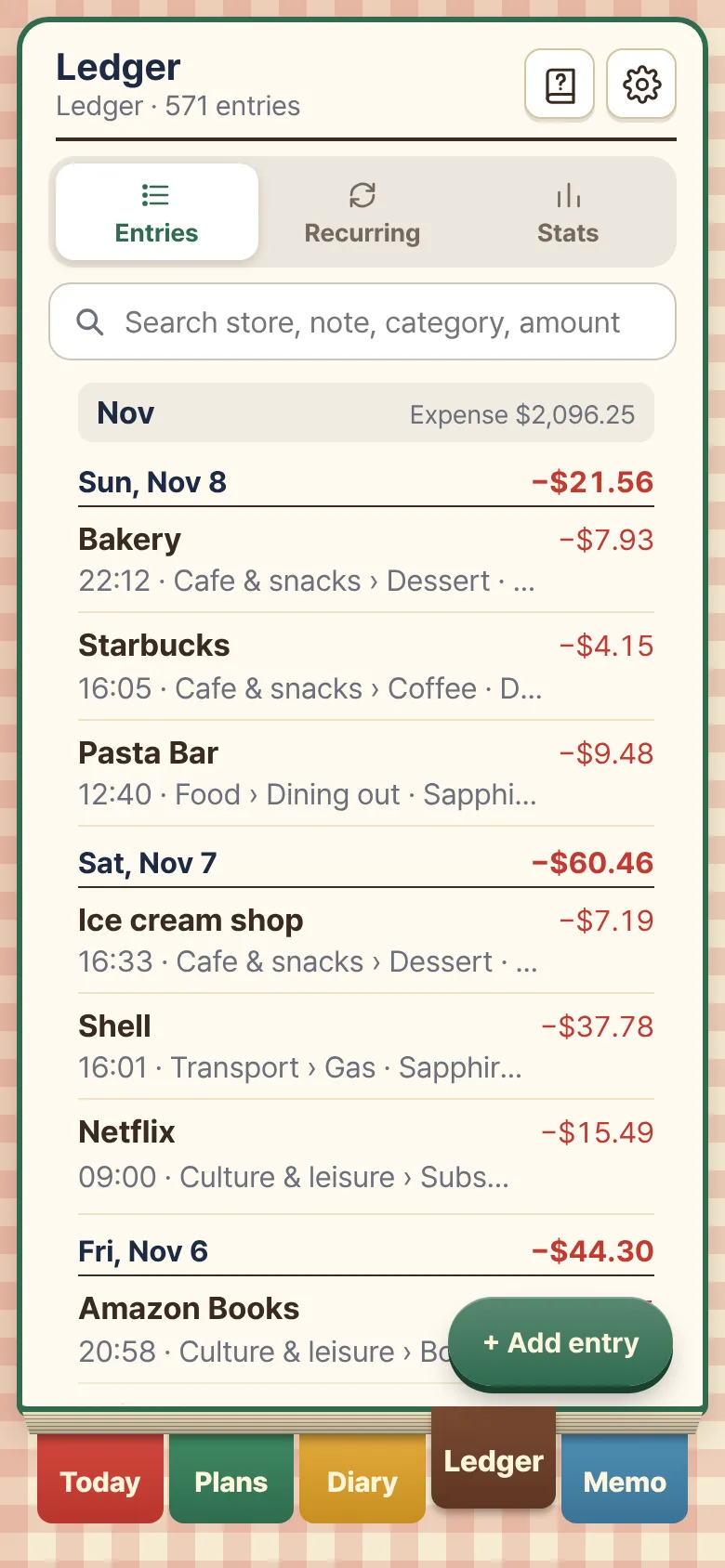
Ledger entries: café, dessert and transport spending listed by date
Ledger entries
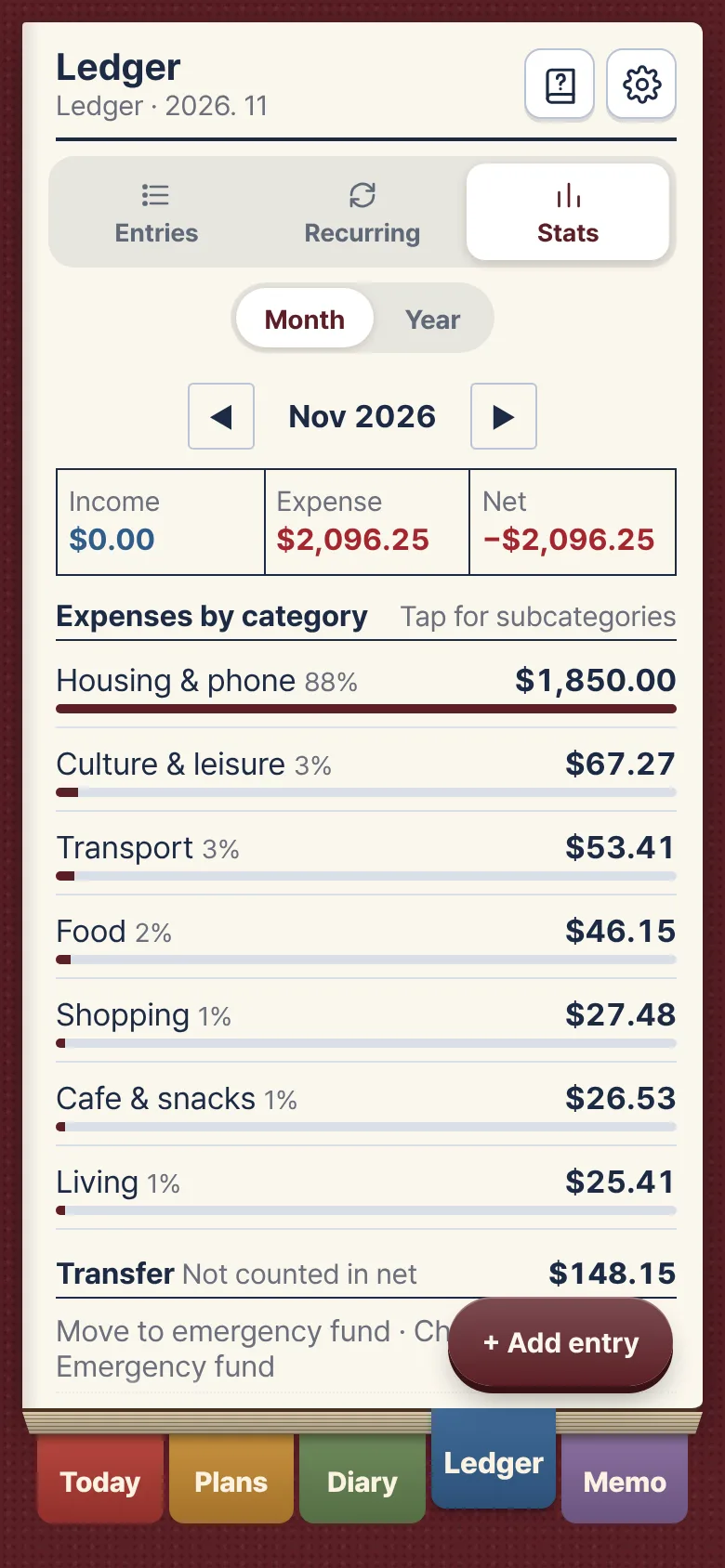
Monthly ledger stats
This month's stats
Ledger

One receipt and you're done

Snap a receipt and the total, store and date are read on your device and filled in. You can also paste a card payment text. The photo is never stored.

  • Expenses, income and transfers, installments and recurring payments
  • Monthly and yearly stats
  • Many currencies: dollar, euro, yen, won and more
  • Our Ledger: a ledger you keep together with your partner (more below)
iPad & Apple Pencil

Turn it sideways for an open diary

Hold the iPad sideways and two pages open out from the spine in the middle. Pages turn from right to left, with the next page printed on the back.

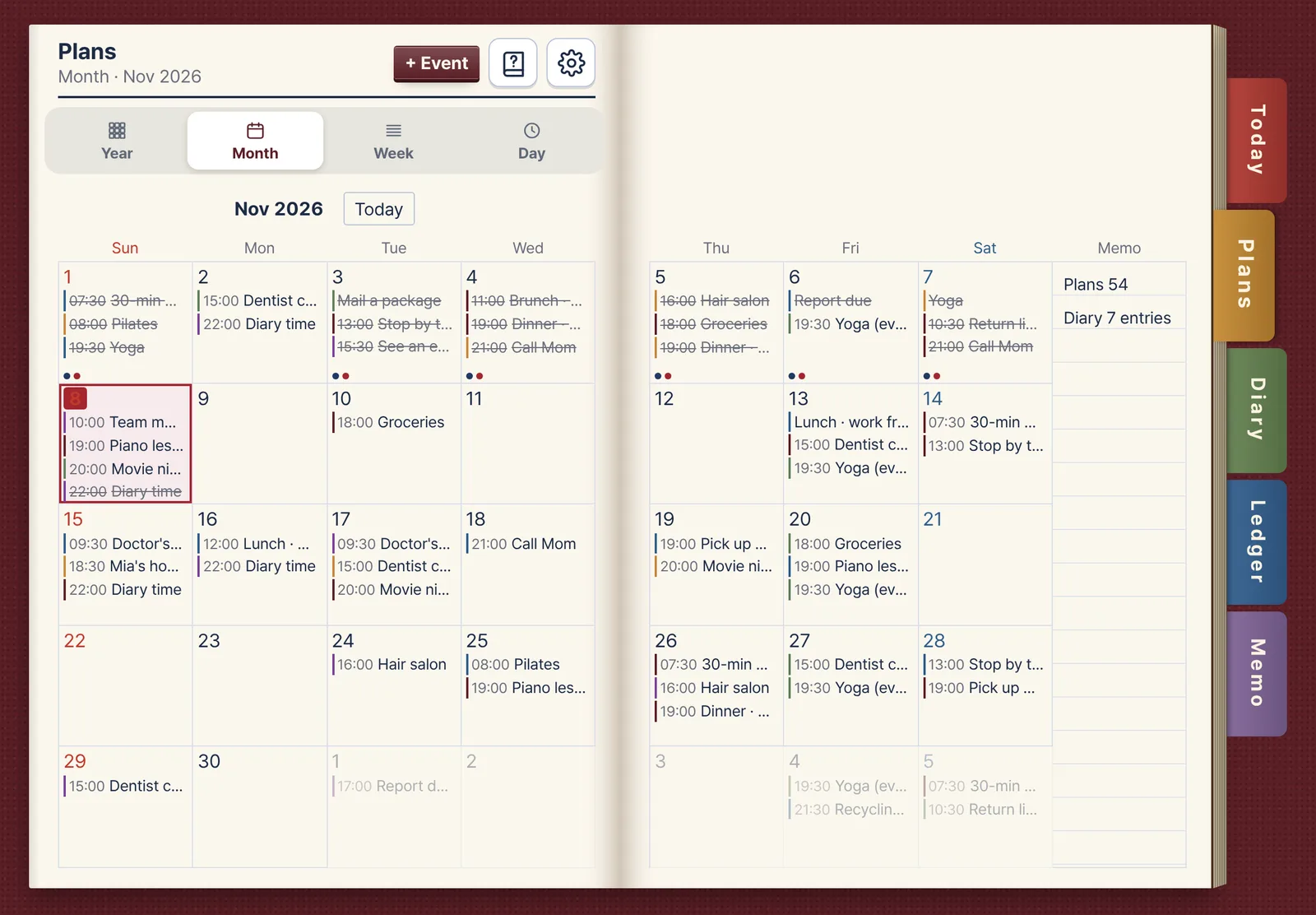
iPad month calendar in landscape: Sun–Wed on the left page, Thu–Sat and notes on the right
The month spreads across both pages, with each plan and its time in its box.
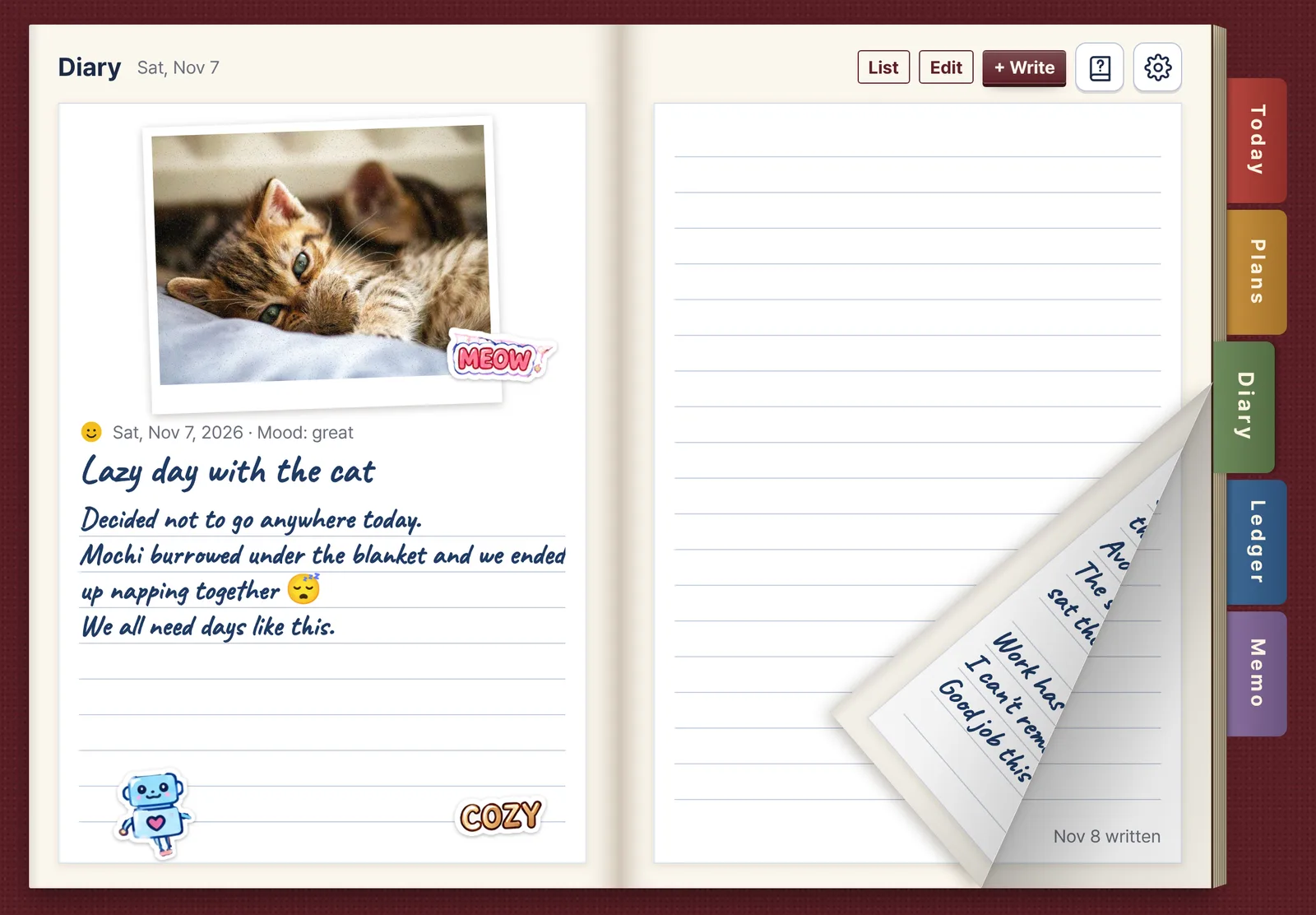
A diary page turning on iPad
One day across two pages; turn the page for the next.
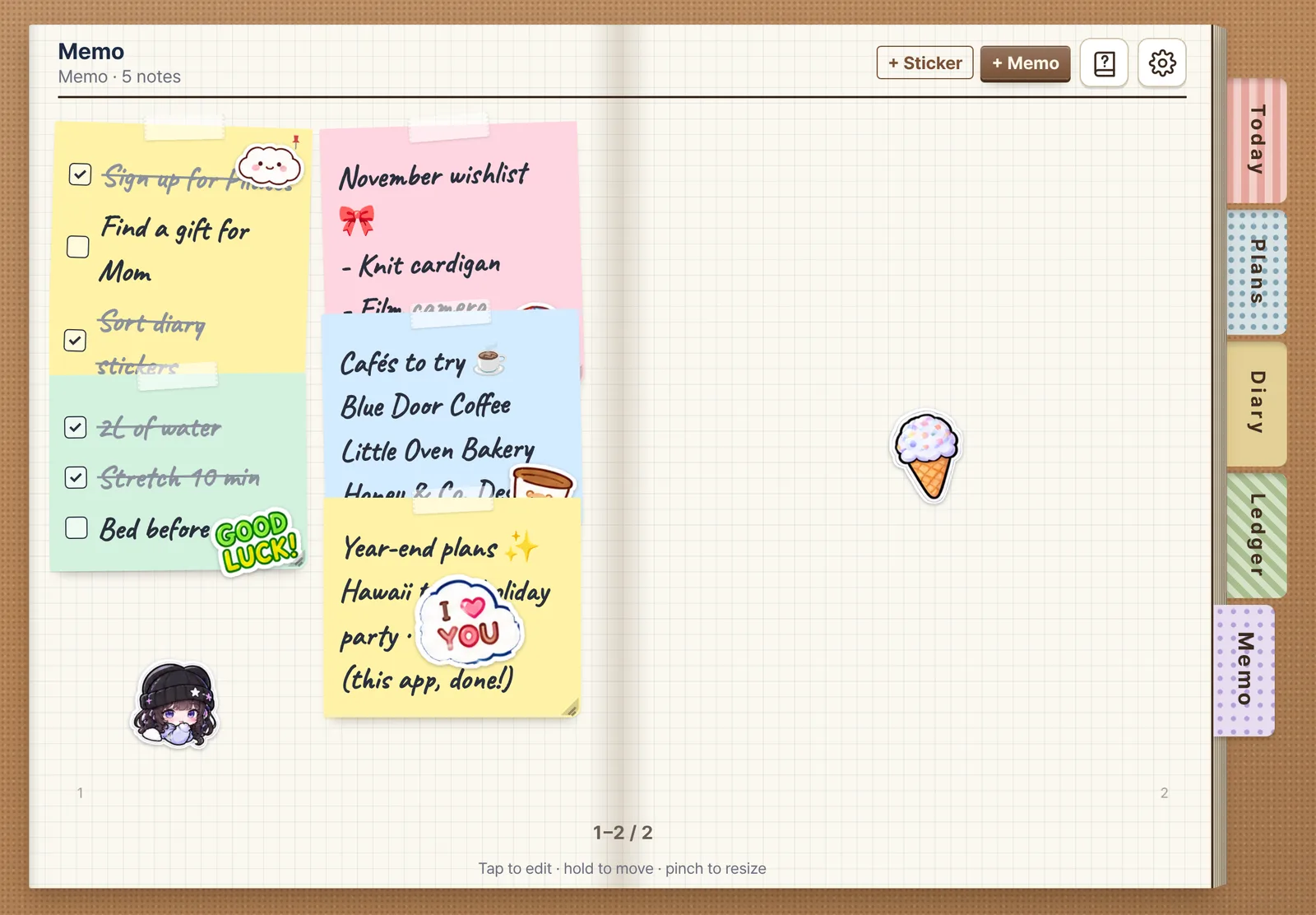
iPad memo board in landscape: notes on the left, stickers on the blank right page
The memo board opens out too. Stick stickers right on the blank page.
Upright

Stand it upright for a single-page notebook

Hold the iPad upright and it becomes a single-page diary on its own, just right for writing with Apple Pencil like a notebook. Rotate it any time: the entry you were on stays right there.

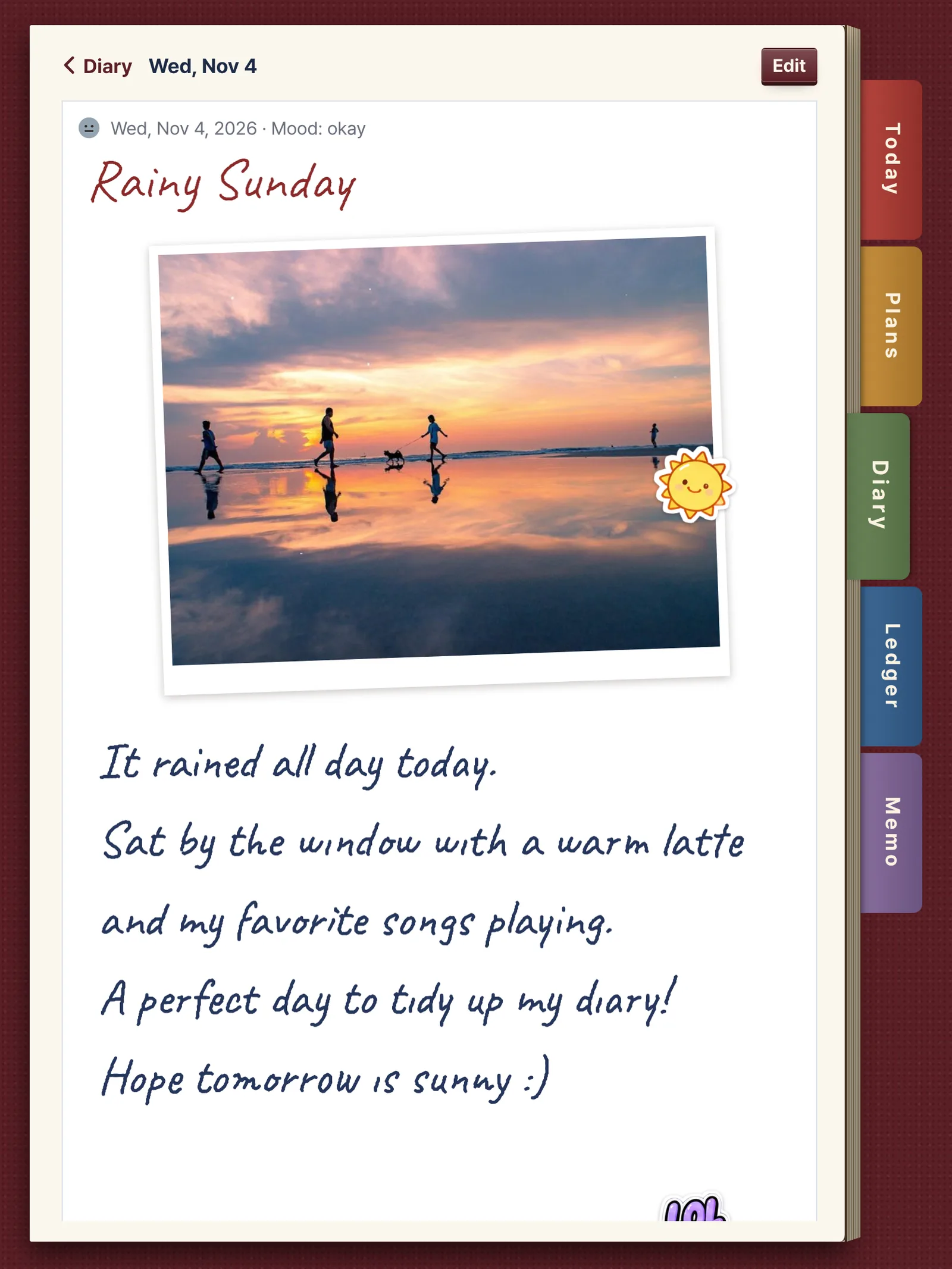
Handwritten diary on iPad in portrait, with a sunset photo
Portrait · handwritten diary
iPad Today screen in portrait: chalkboard and cork memo board
Portrait · Today
✎ Apple Pencil handwritingPalm rejectionNeed more room? Add a sheetSame records as iPhone via iCloudLandscape & portrait
iCloud

Start on your phone, pick up on your iPad

Turn on Sync with iCloud in Settings, and your plans, diary, photos, ledger and memos are saved to your own iCloud. Nothing passes through the developer's servers.

iPhone ⇄ iPad, always in sync

An entry saved on your iPhone reaches iCloud within seconds, and it's waiting when you open your iPad. It works the other way too. With the same Apple Account, every device shares one diary.

New phone, same diary

Sign in to your new iPhone with the same Apple Account and install the app: your diary, photos and ledger come right back from iCloud. Years of records, never lost.

'Our ledger', kept together as a couple

Invite your partner through iCloud and 'Our ledger' appears on both of your phones. When you log the groceries, it shows up in your partner's ledger right away, and what they log shows up in yours. Your own spending money can stay in 'My ledger'.

Sync plans with Apple Calendar and Google Calendar

Turn on iPhone Calendar in the Connect section of Settings: events from the iPhone's built-in Calendar app appear in your diary's plans, and plans you add in the diary show up in the Calendar app.

Google Calendar works too, with no Google sign-in. Add your Google account once in iPhone Settings › Calendar › Accounts, and your Google events reach the diary through the iPhone Calendar. You never type your Google ID or password into the app.

5 themes

Change the cover to match your mood

One tap in Settings changes the cover, the paper and the index tabs.

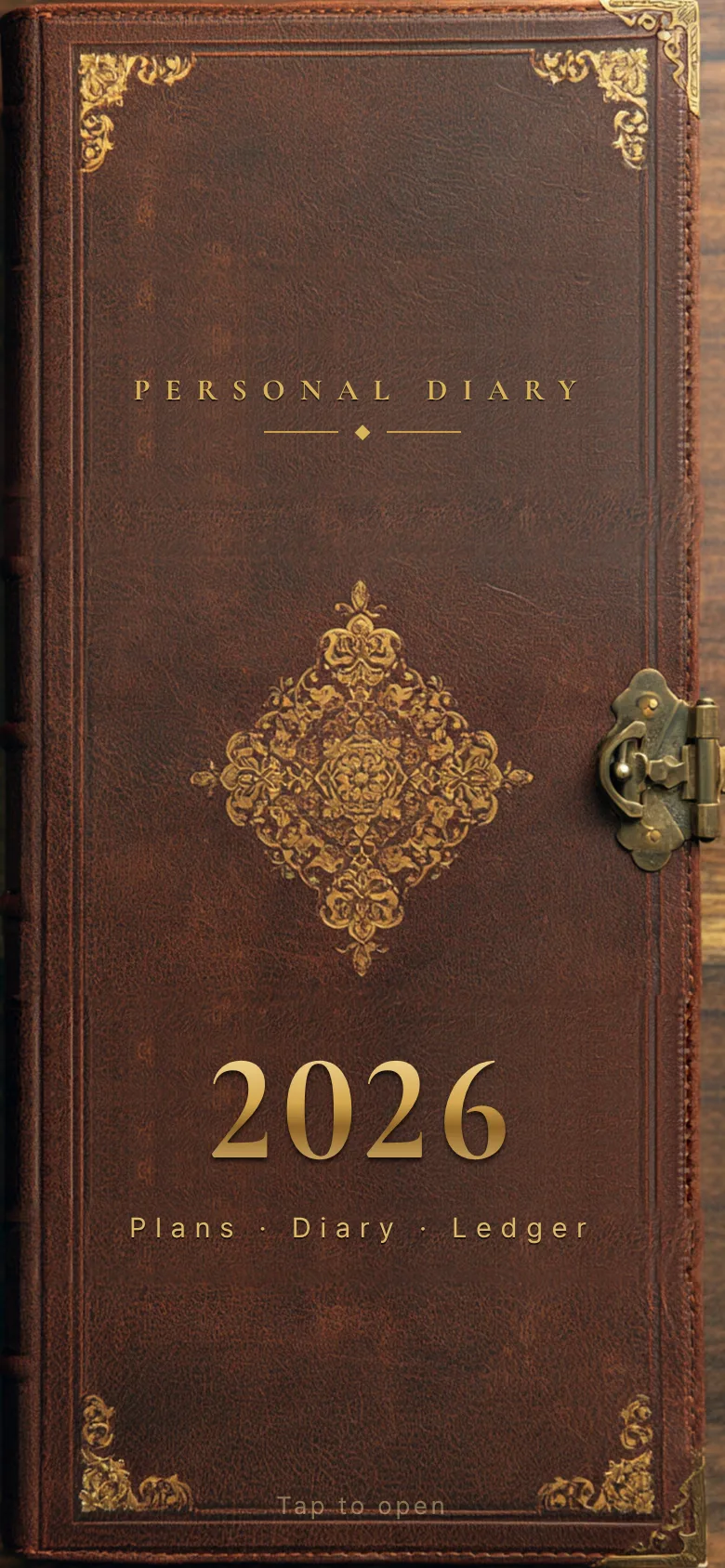
Burgundy leather cover
90s System PlannerBurgundy leather, gold-foil border
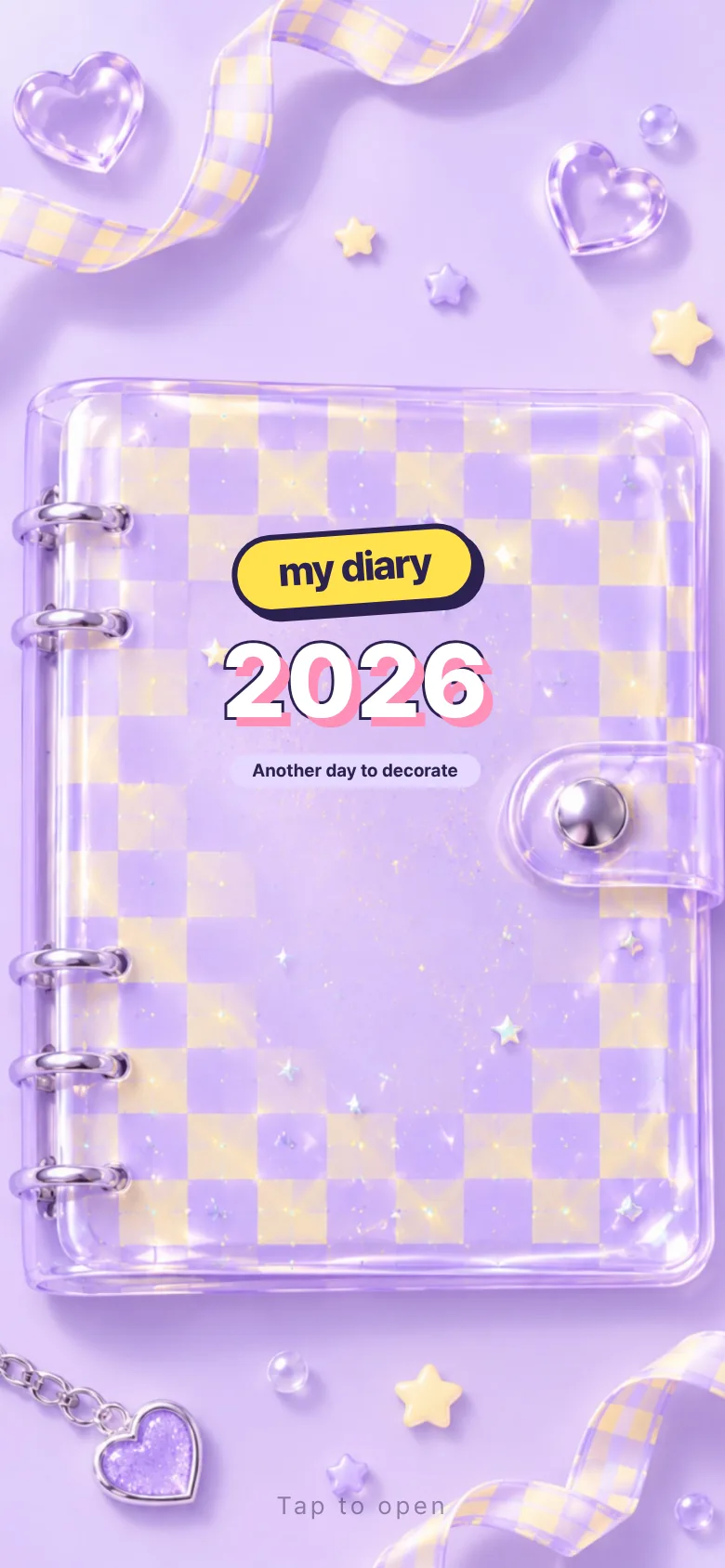
Checkered cover
Y2K CheckerboardLilac and yellow checks, rounded corners
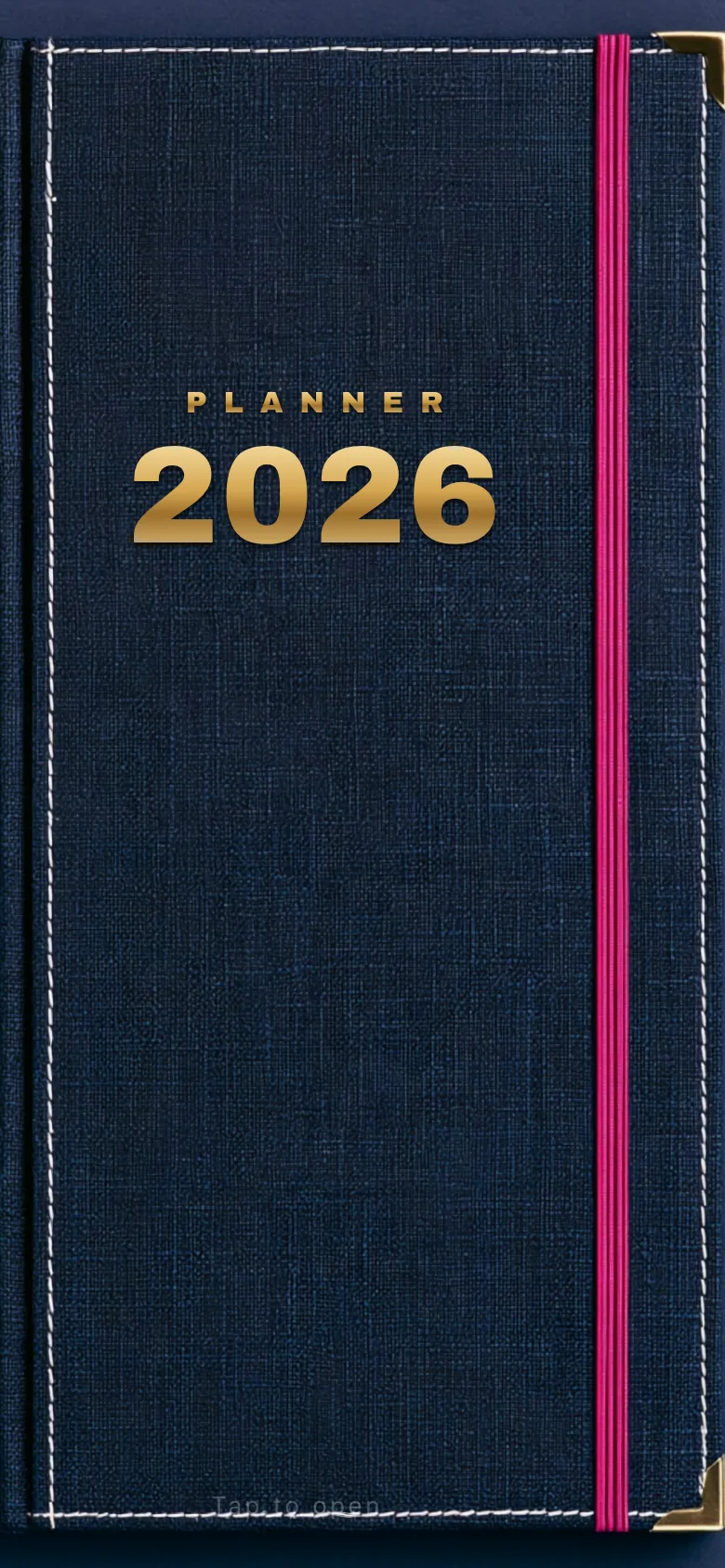
Navy binder cover
Binder PlannerNavy binder, colorful index tabs
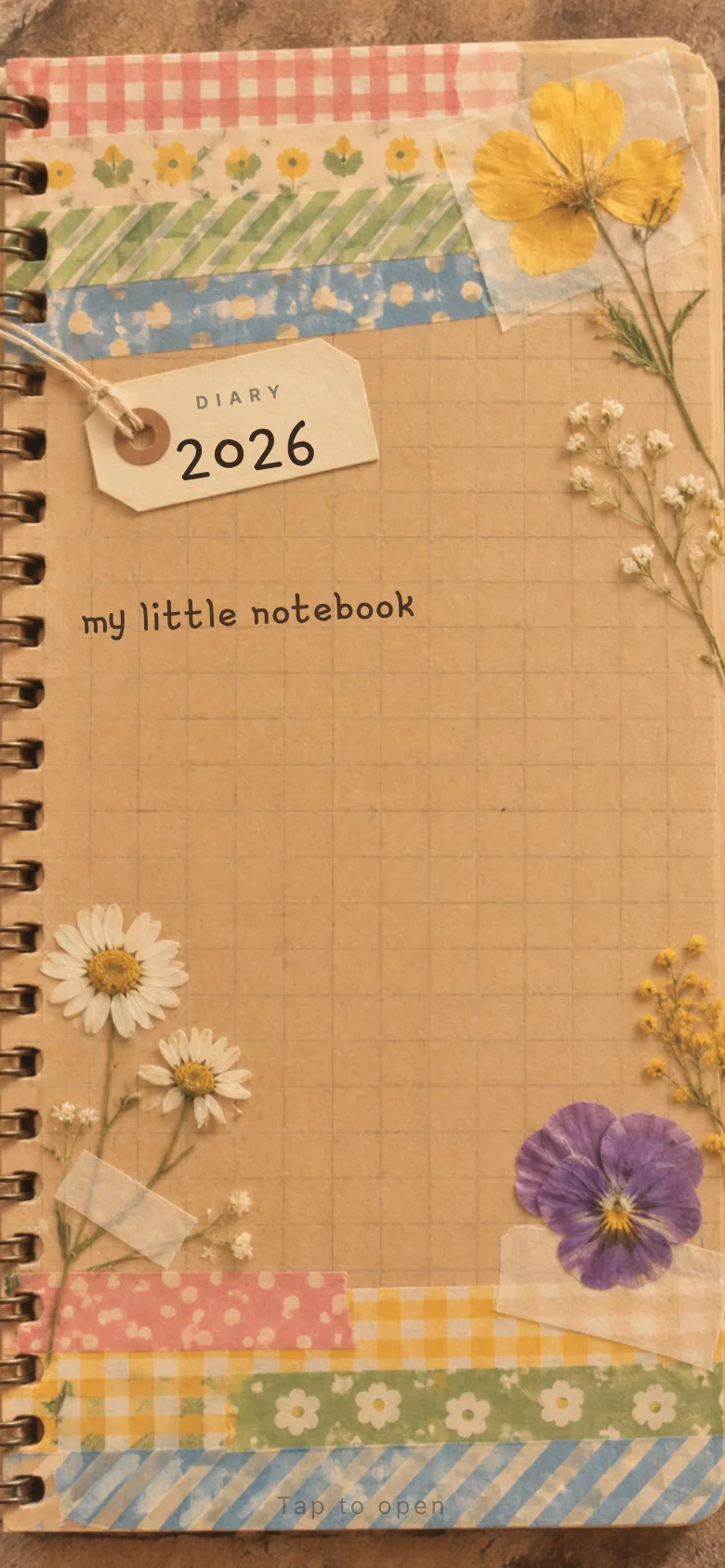
Kraft paper cover
Washi & KraftGrid paper, masking-tape tabs
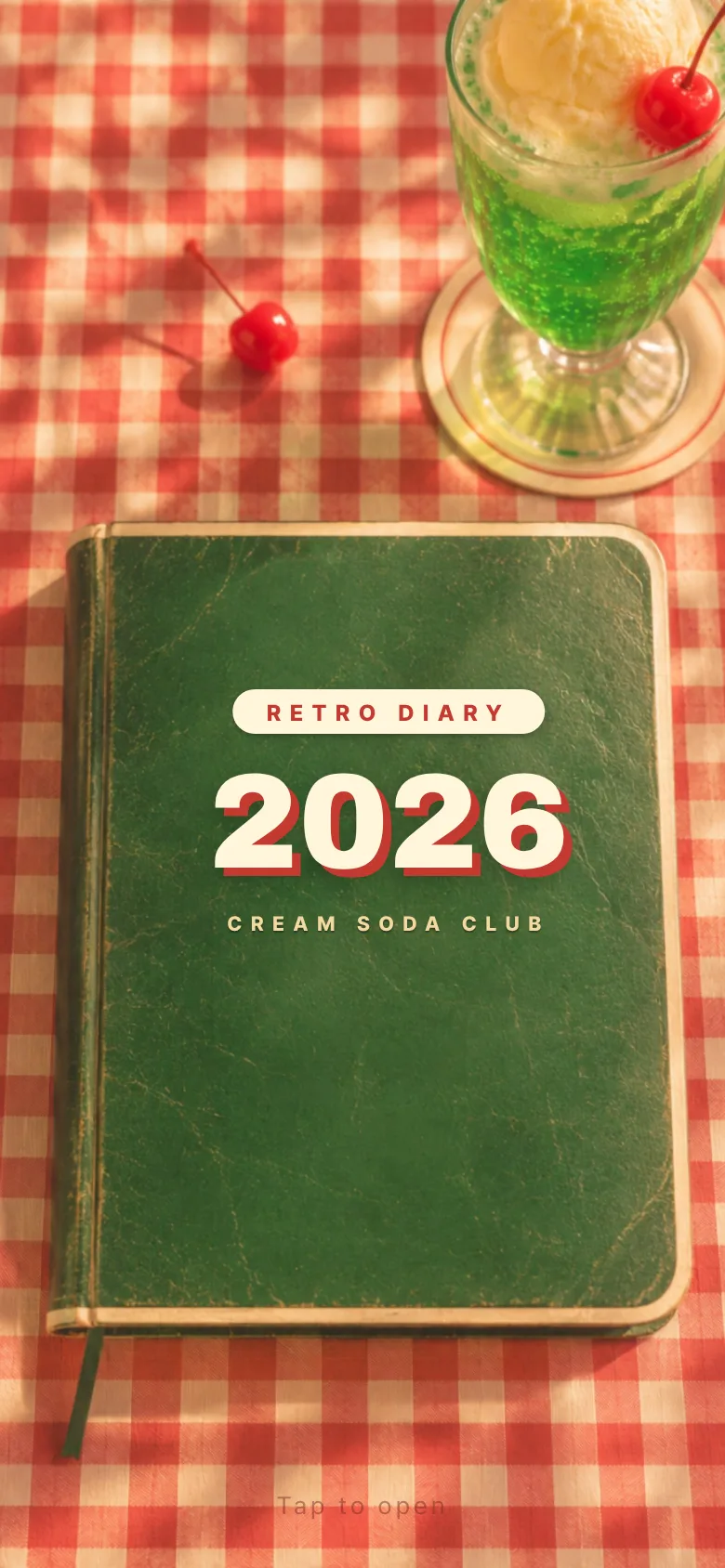
Green kissaten cover
Retro KissatenCream-soda green, gingham tablecloth
Stickers

Stickers are half the fun

Speech-bubble words, animals, desserts, space, Christmas and Y2K vibes. You can even turn your favorite photos into your own stickers.

300+ stickers
9 themed packs
∞ stickers from your photos

Make stickers from your photos

In the sticker picker, tap Cut out from photo, then paint over the part you want to keep, like your cat or today's cake, and it becomes a sticker with a white border.

Stickers made on iPhone work too

In the iPhone Photos app, touch and hold a subject to lift it from the background and save it. Pick that image and it becomes your sticker instantly, no painting needed. Your stickers gather in 'My stickers', ready for any diary entry or memo.

Price

Free for 30 days, then pay once

Download it and try every feature free for 30 days. If you love it, buy the lifetime pass once. It is not a subscription, so there is nothing to pay each month.

  1. Days 1–30Every feature, free
  2. From day 31Everything you wrote stays readable; to keep writing, get the lifetime pass

Lifetime pass

$9.99one-time payment

  • One purchase for both iPhone and iPad, at the same time
  • Family Sharing: your family can use it without buying it again
  • All themes and stickers
  • iCloud sync and Home Screen widgets
  • 한국어 · English · 日本語 · 繁體中文
FAQ

Questions

Where are my records stored?

On your device, and in your own iCloud if you turn it on in Settings. You'll see the same records on the iPhone and iPad that use the same Apple Account. Nothing is sent to the developer's servers.

Does it convert handwriting to text?

No. Your handwriting stays exactly as you wrote it. When you'd rather type, just switch to ⌨ Type.

Are receipt photos kept?

No. Only the total, store and date are read on your device; the photo itself is not saved.

What happens after 30 days?

Your plans, diary, ledger and memos all stay, and you can read them any time. To write or edit, buy the lifetime pass once and keep it for good.

Do I need to buy it separately for iPhone and iPad?

No. Buy it once and use it on every iPhone and iPad with the same Apple Account. Family members in your Family Sharing group don't need to buy it either.

Does it work with Google Calendar?

Yes. Add your Google account in iPhone Settings › Calendar › Accounts, then turn on iPhone Calendar in the Connect section of the app's Settings. Google events come in through the iPhone Calendar, so there's no separate Google sign-in in the app.

Will I lose my records if I change phones?

If Sync with iCloud is on, your records come back when you install the app on the new phone with the same Apple Account. You can also export a backup file in Settings › Data.

With Family Sharing, can my family read my diary?

No. Family Sharing shares the app, not your records: everyone's records stay in their own iCloud. The only thing you share is an 'Our ledger' you invite someone to.

Can I keep others from reading my diary?

Yes, you can turn on a passcode lock in Settings.

Which languages does it support?

You can choose 한국어, English, 日本語 or 繁體中文 in Settings.
Who made it

Made by the developer of Pocket Korean

I make the language-learning services Pocket Korean and Pocket German in Berlin. I started this app because I wanted to bring the joy of my old paper diaries into my phone. Feature ideas and feedback are always welcome.

hello@pocketkorean.com

Read the privacy policy